WhatsApp Communities: How to Create and Manage One (Complete 2026 Guide)
WhatsApp Communities tie related groups together under one name with an admin-only announcement group that reaches everyone at once — up to 5,000 members across 50 groups. This 2026 guide covers how to create and manage a Community, how it compares to groups and Channels, the limits, and when it's the wrong tool for customer messaging.

On this page
Anyone who has run more than two WhatsApp groups for the same organisation knows the problem: the same announcement pasted into five chats, members in the wrong group, and important updates buried under memes. WhatsApp Communities were built to fix exactly that — an umbrella that ties related groups together with one admin-only announcement channel on top. This guide covers what a Community is, how to create one, the limits, and when it's the right tool (and when it isn't).
What is a WhatsApp Community?
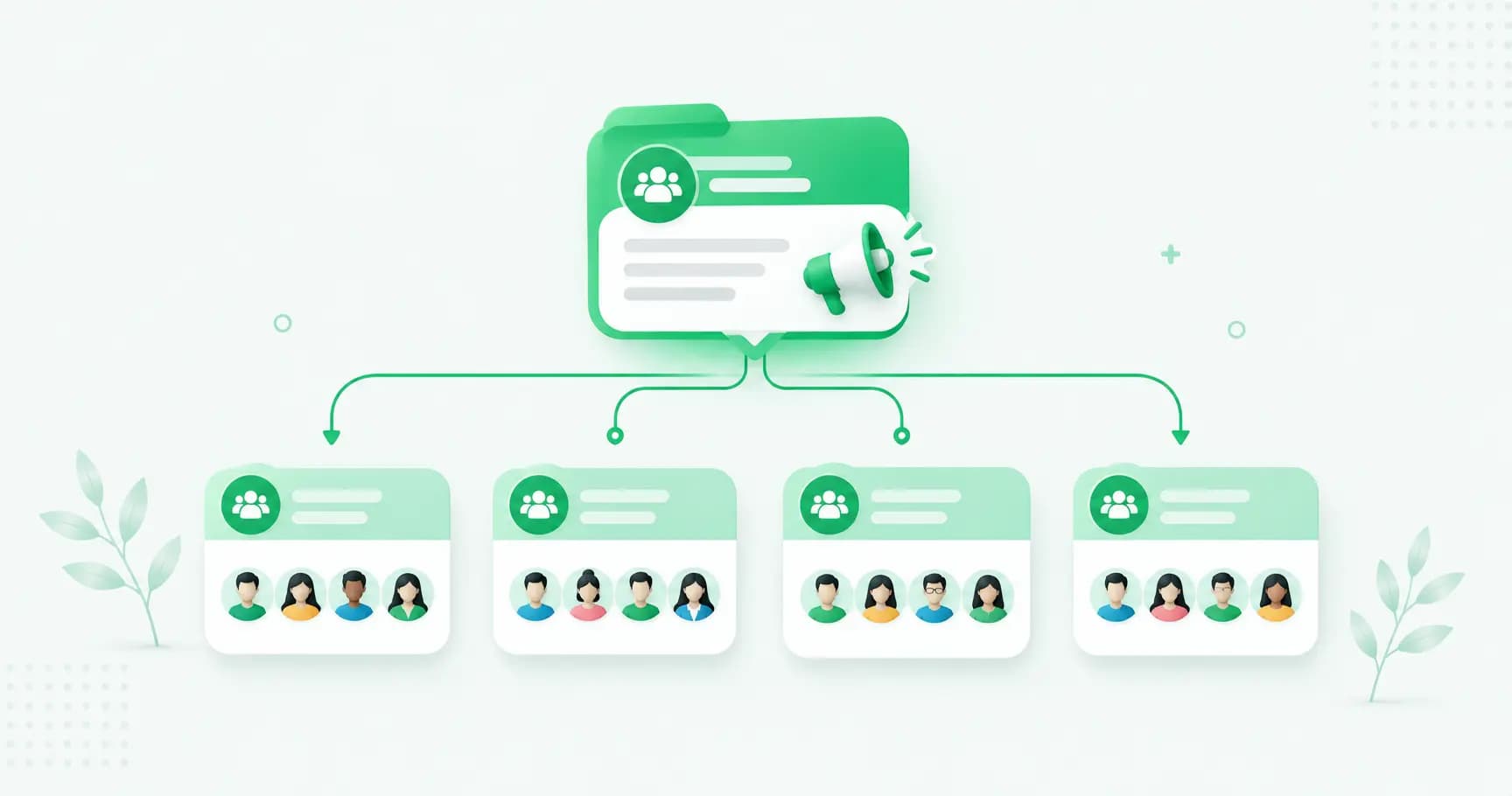
A WhatsApp Community is an organisational layer that sits above your groups. It links related groups under one name and identity, and gives admins an announcement group that reaches every member across every group at once — while day-to-day chat continues inside the individual groups.
The structure looks like this:
The Community — the umbrella, with a name, description and icon
The announcement group — created automatically; every member is in it; only admins can post
Subgroups — up to 50 groups, each with its own members and conversations
A school is the classic example: one Community with an announcement group for whole-school notices, plus separate groups for Class 4B, the football team, and the parents' committee. Everyone gets the closure notice; only the football parents get the match schedule.
Community vs group vs Channel
These three are regularly confused, and they solve different problems:
Members | Who can post | Discoverable? | Numbers visible? | |
|---|---|---|---|---|
Group | Up to 1,024 | Everyone | No (invite only) | Yes, to all members |
Community | Up to 5,000 across groups | Admins in announcements; everyone in subgroups | No (invite only) | Only within each subgroup |
Channel | Unlimited | Admin only | Yes (public directory) | Never |
In short: a group is one conversation, a Community is a set of related conversations with a shared noticeboard, and a Channel is a public one-way broadcast. Communities are private and organisational; Channels are public and promotional.
Key features and limits
Up to 5,000 members in total across the Community
Up to 50 groups — existing ones you link, or new ones you create
Up to 20 admins to share the load
Admin-only announcement group that reaches everyone
Polls for quick decisions and feedback
Events — admins can create events in the announcement group so every member sees the details without them getting buried
Group voice calls with up to 32 participants
File sharing up to 2 GB
End-to-end encrypted, like all WhatsApp messages
Invite-only — Communities can't be searched or discovered
How to create a WhatsApp Community
Works from regular WhatsApp, the WhatsApp Business app, or WhatsApp Web.
Open WhatsApp and tap the Communities tab (the icon of three people).
Tap New Community, then Get started.
Add a name, a short description (what it's for and who it's for) and a profile photo.
Add groups — either link existing groups you already admin, or tap Create new group to build fresh ones.
Tap the green tick to finish. Your announcement group is created automatically.
Then invite people. You can share an invite link for the whole Community, or add members directly to specific groups. Anyone who joins is automatically added to the announcement group.
Setting up your Community well
A few decisions that make the difference between an organised Community and a noisy one:
Write the rules in the announcement group first. What each subgroup is for, what's off-topic, how to reach an admin.
Confirm the announcement group is admin-only. It's the default, but check — the whole point collapses if 3,000 people can post there.
Spread the admin load. Assign admins to specific subgroups (one for sales, one for support, one per location) so nothing depends on one person.
Create an admins-only group so admins can coordinate away from members.
Don't over-announce. The announcement group reaches everyone; use it for things that genuinely concern everyone.
Managing a Community
As a Community admin — effectively a "super admin" — you can add and remove members and groups, edit the name, description and icon, appoint subgroup admins, and post to the announcement group. Subgroup admins manage their own group as normal. Members can leave individual groups without leaving the Community, or leave the Community entirely, which removes them from everything.
Who Communities are for
Schools and coaching institutes — whole-school notices plus class-by-class groups
Housing societies and RWAs — society-wide announcements plus wing or committee groups
Clubs, sports teams and NGOs — one identity, many activity groups
Events and conferences — a general channel plus groups per track or day
Multi-location businesses and franchises — an announcement layer plus a group per store or city
Internal teams — company-wide updates plus department groups
Customer communities — a brand community with groups per product line or city for pickups and meet-ups
The limits: when a Community is the wrong tool
Be honest about what a Community is before you build customer communication around it:
5,000 members is a hard ceiling, and members join manually.
Members can see each other's numbers within a subgroup. Fine for a school or a club; a real privacy problem for a customer base.
No segmentation — you can't target by purchase history, location or behaviour beyond which group someone's in.
No automation, no personalisation, no analytics. Every announcement is manual and identical for everyone.
No API — nothing connects to your CRM or store.
Announcements go to a group, not a private chat, so there's no one-to-one relationship with a customer.
For organising a fan base, a society or a team, none of this matters. For messaging customers — order updates, offers, cart recovery, support — it's the wrong tool.
Communities vs the WhatsApp Business API for customers
If your goal is a community of people who want to talk to each other, use a Community. If your goal is reaching your own customers with relevant, private, automated messages, use the WhatsApp Business API: unlimited opted-in broadcasts delivered as private one-to-one chats, segmentation, an AI chatbot answering replies, and a team inbox — with no member cap and no exposed phone numbers. Many businesses run both: a Community for their genuine fans, the API for everyone who buys.
Frequently asked questions
What is a WhatsApp Community?
A WhatsApp Community is an umbrella that links related WhatsApp groups under one name, with an admin-only announcement group that reaches every member across all groups at once. It holds up to 5,000 members across up to 50 groups and is private and invite-only.
How do I create a WhatsApp Community?
Open the Communities tab, tap New Community and Get started, add a name, description and photo, then link existing groups or create new ones and confirm. The announcement group is created automatically, and anyone who joins is added to it.
How many members can a WhatsApp Community have?
Up to 5,000 members in total across the Community, spread over up to 50 groups. Individual groups are still capped at 1,024 members each.
What's the difference between a WhatsApp Community and a group?
A group is a single conversation where everyone can post and see everyone, capped at 1,024. A Community is a set of related groups under one identity, with an admin-only announcement group reaching all members, holding up to 5,000 people. Communities organise; groups converse.
What's the difference between a WhatsApp Community and a Channel?
A Community is private, invite-only and two-way inside its subgroups, for an organisation's members. A Channel is public, searchable in WhatsApp's directory, one-way and unlimited, for broadcasting to a general audience. Members' numbers are visible within Community subgroups but never on a Channel.
Can Community members see each other's phone numbers?
Within a subgroup, yes — members see the numbers of others in the same group, as in any WhatsApp group. They can't see members of other groups in the Community. This is worth considering before using a Community for customers.
Who can post in a WhatsApp Community announcement group?
Only admins. Every member receives announcements, but they can't reply there. Regular two-way chat happens in the subgroups.
Are WhatsApp Communities good for business?
For organising members who want to interact — a school, society, club, franchise network or genuine customer community — yes. For messaging customers at scale with private, personalised, automated updates, the WhatsApp Business API is the better fit, since Communities have a 5,000 cap, no segmentation or automation, and expose numbers within groups.
The bottom line
A WhatsApp Community turns a sprawl of related groups into one organised structure with a noticeboard on top — ideal for schools, societies, clubs, teams and franchises. Set it up with clear rules, shared admins and a disciplined announcement group, and it stays useful instead of noisy. Just don't mistake it for a customer messaging channel; that's a different tool for a different job.
Need to reach customers, not just members? Splashify Pro delivers private, personalised messages to unlimited opted-in customers on the official WhatsApp API — with AI replies and a team inbox. Free for 14 days.
Related posts
More articles you might find useful.
How to Change or Migrate Your WhatsApp Business Number (2026 Guide)
A business WhatsApp number is an asset printed on your website, cards and ads — so changing it needs care, or customers keep messaging a dead number. This 2026 guide covers all three "changes": switching the phone number, converting personal to business, and migrating to the API — the exact steps for each, and how to lose no chats or customers.
How to Schedule WhatsApp Messages (Android, iPhone, Web & Business) — 2026
WhatsApp still has no built-in scheduler — and the "Tools → Schedule message" option some sites mention doesn't exist. This 2026 guide covers every method that actually works: SKEDit on Android, Shortcuts on iPhone (with a catch), browser extensions on Web, and cloud scheduling on the Business API — plus what each one can't do.
How to Create a WhatsApp Business Account: Step-by-Step Guide (2026)
Creating a WhatsApp Business account is free and takes five minutes — but the number you pick, whether you convert your personal WhatsApp, and what you name it are easier to get right the first time. This 2026 guide walks through every step, plus using a landline, converting an existing number, and the difference between the app account and the API account.