How to Create a WhatsApp Business Account: Step-by-Step Guide (2026)
Creating a WhatsApp Business account is free and takes five minutes — but the number you pick, whether you convert your personal WhatsApp, and what you name it are easier to get right the first time. This 2026 guide walks through every step, plus using a landline, converting an existing number, and the difference between the app account and the API account.

On this page
Creating a WhatsApp Business account takes about five minutes and costs nothing. But there are a few decisions in those five minutes — which number to use, whether to convert your existing WhatsApp, what to call the account — that are much easier to get right the first time than to fix later. This guide walks through every step, then covers the questions people actually get stuck on.
Before you start: two things to decide
1. Which phone number? Every WhatsApp Business account needs its own number, and it can't already be in use on another WhatsApp account. You have three options:
A new mobile number — cleanest, keeps business and personal fully separate.
A landline or office number — yes, this works. You verify by phone call instead of SMS.
Your existing personal WhatsApp number — you can convert it to a Business account and keep your chat history, but that number then becomes your business line.
For most businesses, a dedicated number is the right call. It lets you run WhatsApp and WhatsApp Business side by side on the same phone.
2. What's your business name? This is what customers see, and WhatsApp restricts how often you can change it. Use your real brand name — not a description, not a slogan, not a keyword-stuffed phrase. If it doesn't match the business, WhatsApp can reject it.
How to create a WhatsApp Business account (step by step)
Step 1 — Download WhatsApp Business
Search "WhatsApp Business" in the Google Play Store or Apple App Store. It's a separate app from regular WhatsApp, with a green icon showing a "B." Confirm the developer is Meta before installing — there are lookalike clones.
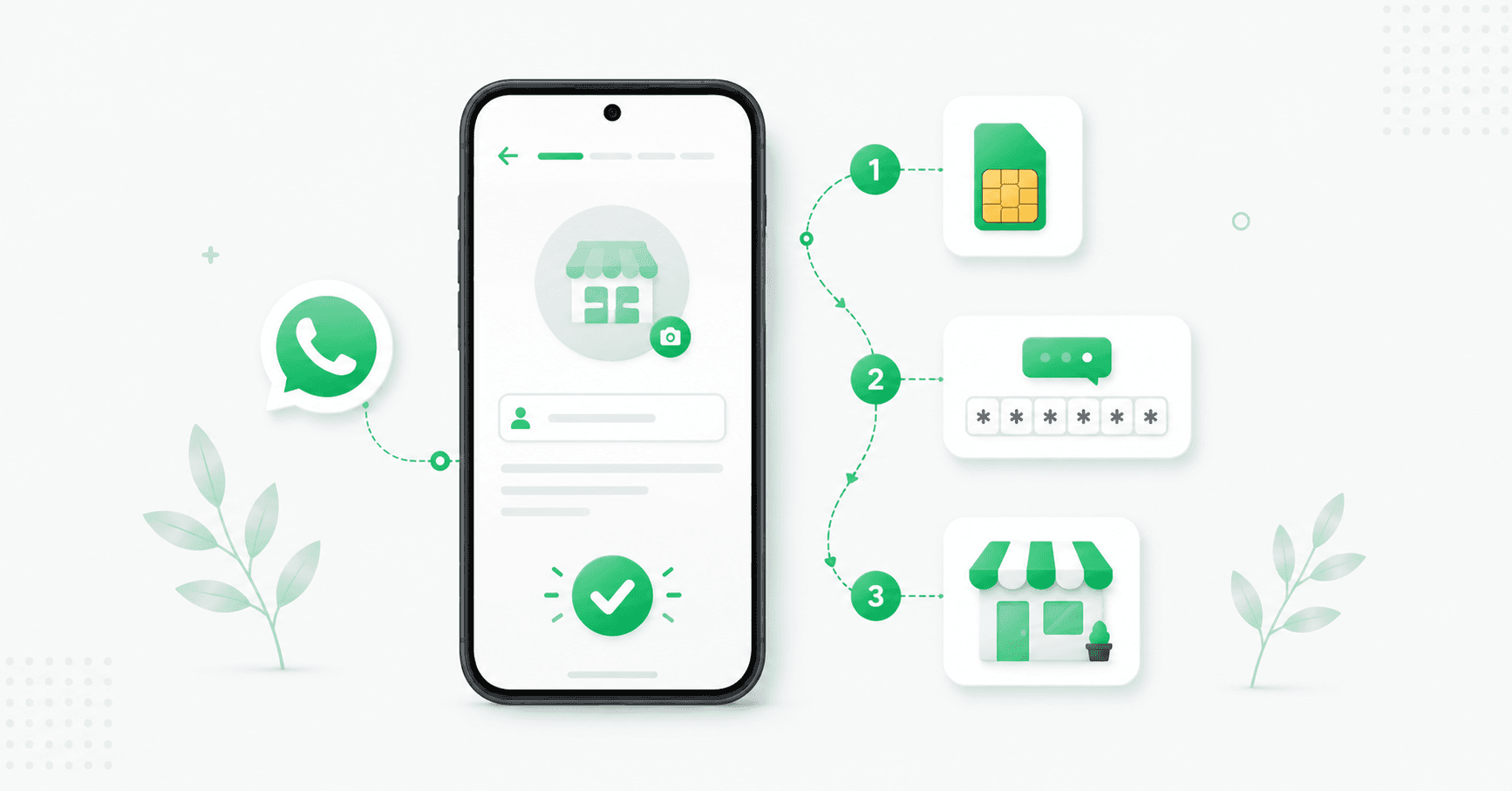
Step 2 — Agree to the terms and enter your number
Open the app, accept the Terms of Service, then enter the phone number you decided on. Check the country code is right (India is +91).
Step 3 — Verify the number
WhatsApp sends a 6-digit code by SMS. Enter it and you're through. If you're using a landline, wait for the SMS option to time out, then choose Call me — WhatsApp phones the number and reads the code aloud.
If the number is already on regular WhatsApp on this phone, the app offers to migrate it. Accept, and your chats and media move across. (More on this below.)
Step 4 — Allow permissions
Grant access to contacts and photos so you can message customers and share images. You can restrict these later if you prefer.
Step 5 — Enter your business name and category
Type your business name (choose carefully — see above), then pick the category that best describes what you do. Add a profile photo — your logo, ideally.
Step 6 — Build your business profile
Tap More options → Settings → Business tools → Business profile and fill in everything:
Description — a sentence or two on what you do
Address — with a map pin, if you have a physical location
Business hours
Email and website
A complete profile is the fastest credibility win available. Customers can see it before they message you, and empty fields look like an abandoned account.
Step 7 — Set up your essential tools
You're live at this point, but five more minutes makes the account genuinely useful. In Business tools:
Greeting message — auto-sent to first-time contacts
Away message — auto-sent outside your hours
Quick replies — saved answers for the questions you get daily
Catalog — your products or services with photos and prices
Full walkthrough of each in our WhatsApp Business app guide.
Step 8 — Get your link and QR code
WhatsApp gives you a short link and a QR code so customers can message you without saving your number. Put the link in your Instagram bio and website, and the QR on packaging, signage and business cards. (You can also make branded ones with our free WhatsApp link generator and QR code generator.)
Converting your personal WhatsApp to a Business account
If you want to use your existing number, you can convert it during setup and keep everything:
Install WhatsApp Business and enter your current WhatsApp number.
The app detects the existing account and offers to transfer your chat history. Accept.
Your chats, media and groups move to WhatsApp Business. Your contacts see no change.
Two things to understand first. Your number is now your business line — you can't have it on both apps. And you can move back to regular WhatsApp later if you change your mind, again keeping your history. It's reversible, but it's a one-app-at-a-time arrangement.
Using a landline for WhatsApp Business
A common question, and the answer is yes. Enter the landline number during setup, wait for the SMS verification to time out, and choose Call me. WhatsApp calls the number with the code. After that the account works exactly like any other — the landline just needs to be able to receive that one verification call.
Running WhatsApp Business alongside personal WhatsApp
Because WhatsApp Business is a separate app, you can keep regular WhatsApp on your personal number and run the Business app on a second number — both on the same phone, at the same time. You'll need a dual-SIM phone, an eSIM, or a second number that can receive the verification code once. See our guide on running two WhatsApp accounts on one phone.
Common problems when creating an account
"This number is already in use." It's registered on another WhatsApp account. Either log out there first, or use a different number.
Verification code never arrives. Check the country code, make sure the phone has signal, and wait for the timer — then use Call me. If you've requested too many codes, WhatsApp makes you wait before trying again.
Business name rejected. It must reflect a real business. Avoid generic terms, all-caps, emojis, and anything that looks like a description rather than a name.
"Business Account" label but no green tick. That's normal. The label just means it's a Business app account. The verified badge is a separate process — see our green tick guide.
WhatsApp Business account vs WhatsApp Business API account
One point of confusion worth clearing up. The steps above create a WhatsApp Business account on the free app. The term "WhatsApp Business Account" (or WABA) also refers to the account businesses create in Meta Business Manager to use the WhatsApp Business API — the version with a team inbox, chatbots, broadcasts beyond 256 contacts and integrations.
Which one do you need?
Just you, or a small team handling a modest volume of chats? The free app you just set up is genuinely enough.
Multiple agents, automation, broadcasts to thousands, or CRM/store integrations? You need the API. Your existing number can move across, and a provider handles the Business Manager setup for you. Our WhatsApp Business API guide explains what it is and how to get it.
Frequently asked questions
Is creating a WhatsApp Business account free?
Yes. The WhatsApp Business app is free to download and use, with no subscription and no per-message fees. Costs only apply if you later upgrade to the WhatsApp Business API, which has per-message charges and a platform fee.
Can I use my personal number for WhatsApp Business?
Yes — you can convert your existing personal WhatsApp number to a Business account during setup and keep your chat history. That number then becomes your business line, so it can't be on regular WhatsApp at the same time. Many businesses prefer a separate dedicated number.
Can I create a WhatsApp Business account with a landline?
Yes. Enter the landline number during setup, wait for the SMS verification to time out, and choose "Call me." WhatsApp calls the number and reads out the verification code.
Can I have WhatsApp and WhatsApp Business on the same phone?
Yes. They're separate apps, so you can run both at once as long as each uses a different phone number — typically via dual SIM or eSIM.
Do I get a green tick when I create a WhatsApp Business account?
No. Creating the account gives you a "Business Account" label, not the verified badge. The green tick is a separate Meta process requiring either brand notability via the WhatsApp Business API or a Meta Verified subscription.
Can I change my WhatsApp Business name later?
Yes, but WhatsApp limits how often you can change it, and the name must reflect a real business. Choose it carefully at setup rather than planning to fix it later.
What's the difference between a WhatsApp Business account and a WhatsApp Business API account?
The free WhatsApp Business app account is set up on your phone in minutes and suits solo owners and small teams. A WhatsApp Business API account is created via Meta Business Manager (usually through a provider) and adds a multi-agent inbox, chatbots, unlimited opted-in broadcasts and integrations, with per-message pricing.
How long does it take to create a WhatsApp Business account?
About five minutes for the basic account, plus another five to ten to complete your profile, greeting and away messages, quick replies and catalog.
The bottom line
Five minutes gets you a WhatsApp Business account; ten gets you one that actually works for customers. Pick your number deliberately, name the account properly, fill in every profile field, and set up your greeting, away message and quick replies before you share the link. From there, the free app carries most small businesses a long way — and when it stops being enough, your number moves to the API with you.
Outgrowing the app? Splashify Pro moves your number to the official WhatsApp Business API with a team inbox, AI chatbot and unlimited broadcasts — set up in one to two hours, free for 14 days.
Related posts
More articles you might find useful.
How to Change or Migrate Your WhatsApp Business Number (2026 Guide)
A business WhatsApp number is an asset printed on your website, cards and ads — so changing it needs care, or customers keep messaging a dead number. This 2026 guide covers all three "changes": switching the phone number, converting personal to business, and migrating to the API — the exact steps for each, and how to lose no chats or customers.
How to Schedule WhatsApp Messages (Android, iPhone, Web & Business) — 2026
WhatsApp still has no built-in scheduler — and the "Tools → Schedule message" option some sites mention doesn't exist. This 2026 guide covers every method that actually works: SKEDit on Android, Shortcuts on iPhone (with a catch), browser extensions on Web, and cloud scheduling on the Business API — plus what each one can't do.
WhatsApp Communities: How to Create and Manage One (Complete 2026 Guide)
WhatsApp Communities tie related groups together under one name with an admin-only announcement group that reaches everyone at once — up to 5,000 members across 50 groups. This 2026 guide covers how to create and manage a Community, how it compares to groups and Channels, the limits, and when it's the wrong tool for customer messaging.