How to Schedule WhatsApp Messages (Android, iPhone, Web & Business) — 2026
WhatsApp still has no built-in scheduler — and the "Tools → Schedule message" option some sites mention doesn't exist. This 2026 guide covers every method that actually works: SKEDit on Android, Shortcuts on iPhone (with a catch), browser extensions on Web, and cloud scheduling on the Business API — plus what each one can't do.

On this page
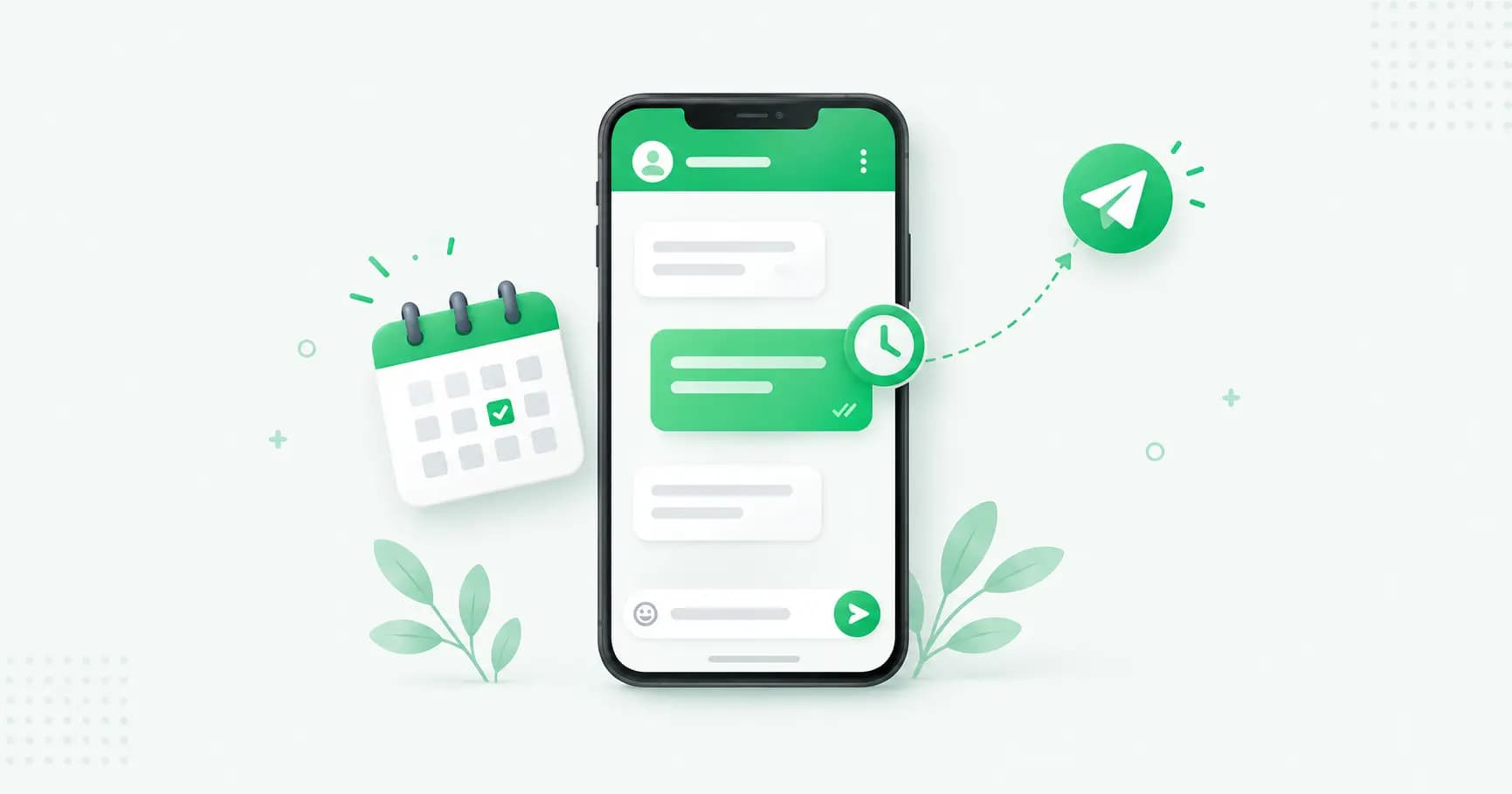
A birthday wish that lands at midnight. A payment reminder that goes out at 10am, not whenever you remember. A festival offer that reaches customers on the day, while you're on a train. Scheduling WhatsApp messages sounds like it should be a built-in button — and it isn't, yet. Here's the honest state of play in 2026, every method that actually works, and what each one can't do.
First: does WhatsApp have a built-in scheduler?
Not yet. As of now, neither regular WhatsApp nor the WhatsApp Business app has a native "send later" option on Android, iPhone, Web or Desktop. Meta has been testing a built-in scheduler in beta since early 2026, and it's expected to arrive — but it isn't broadly available, so check your app after updates and don't rely on it.
One myth worth clearing up, because it circulates widely: there is no "Tools → Schedule message" feature in WhatsApp Business. The Business app's automation — Greeting messages, Away messages and Quick replies — are all reactive. They reply when someone messages you, or you insert them by hand. None of them sends a message to a contact at a future time you choose.
So today, scheduling means one of four workarounds, depending on your phone and your goal.
Method 1: Android — a scheduling app (SKEDit)
Android allows apps to automate other apps through accessibility services, which is why the best consumer scheduling exists here. SKEDit is the most widely used option.
Install SKEDit from the Google Play Store and create an account.
Tap + and choose WhatsApp (or WhatsApp Business).
Grant the Accessibility permission it asks for (Settings → Accessibility → SKEDit).
Pick a contact, group or broadcast list, type your message, attach media if needed.
Set the date and time — and optionally a repeat interval.
Decide on "Ask me before sending": off to send automatically, on to approve it at the moment.
Disable battery optimisation for SKEDit so Android doesn't kill it in the background.
The caveats are real. Your phone must be on, unlocked and connected at send time. The app works by opening WhatsApp and tapping for you, so a WhatsApp interface update can break it. The free tier caps you at a handful of messages a month. And you're granting broad accessibility access to your device — only install scheduling apps from trusted sources, never side-loaded ones.
Method 2: iPhone — Shortcuts (with a catch)
iPhone has no equivalent to Android's accessibility automation, and iOS deliberately restricts background control of third-party apps. The built-in Shortcuts app is the closest thing.
Open Shortcuts → Automation → New Automation.
Choose Time of Day and set when you want it.
Add the action Send Message via WhatsApp, pick the contact and write your message.
Save it.
The catch: at the scheduled time, Shortcuts opens WhatsApp with your message ready — but you have to tap Send. It's a timed reminder with the message pre-written, not a true hands-off send. There's no reliable on-device way around this on iPhone in 2026; scheduling apps that work on Android can't automate the send on iOS.
Method 3: WhatsApp Web — a browser extension
If you work from a laptop, Chrome extensions such as Blueticks add a small clock icon next to the send button on web.whatsapp.com. Click it, pick a time, and the extension sends the message through your active session. Some support recurring messages.
The requirement: your browser tab must stay open and your session logged in at send time. Close the laptop and the message doesn't go.
Method 4: For businesses — the WhatsApp Business API
Every method above shares the same weakness: it depends on a device being awake. For a business, that's not a scheduling system — it's a hope. The WhatsApp Business API is the only route that gives you cloud-side scheduling: the message is queued on the platform and sent at the set time whether your phone is on, off or in a drawer.
It's also the only method built for scale. Through a platform on the WhatsApp Business API, you can:
Schedule broadcasts to thousands of opted-in customers at once — not one contact at a time
Personalise each message with the customer's name and details
Set up recurring and drip sequences — a welcome series, payment reminders, festival campaigns
Trigger messages automatically from events: an order placed, a cart abandoned, an appointment booked
Route replies into a team inbox instead of your personal phone
See delivery, read and reply rates for every scheduled send
The trade-off: business-initiated messages outside the 24-hour window must use pre-approved templates, and there's a per-message cost. For anything beyond occasional personal use, it's the right tool.
Which method should you use?
Best for | Auto-sends? | Phone must be on? | Bulk? | |
|---|---|---|---|---|
SKEDit (Android) | Personal, one-off messages | Yes | Yes | No |
Shortcuts (iPhone) | Reminders to send | No — you tap Send | Yes | No |
Web extension | Desk-based users | Yes | Laptop/tab must stay open | Limited |
Business API platform | Any business use | Yes, from the cloud | No | Yes, unlimited opted-in |
What you can schedule (and what you shouldn't)
Good uses of scheduling:
Birthday and anniversary wishes
Appointment and payment reminders
Festival greetings and offers on the day (see our Diwali campaign guide)
Messages to people in other time zones
Regular updates — a Monday team note, a monthly client check-in
A few cautions:
Don't schedule anything that needs context. If the situation might change before it sends — a delivery time, an open question — send it live.
For business messaging, follow the rules. Only message opted-in customers, and use approved templates for anything sent outside the 24-hour window. Scheduling doesn't exempt you from WhatsApp's policies, and scheduled spam gets numbers banned just as fast as live spam.
Personal messages can feel robotic if they always land at exactly 9:00. For messages that are meant to feel human, add a minute or two of irregularity — or just send them in the moment.
Troubleshooting
Scheduled message didn't send (Android). The phone was off, locked, or the app was killed by battery optimisation. Whitelist the app and keep the phone unlocked at send time.
Shortcuts opened WhatsApp but nothing sent (iPhone). That's expected — iOS requires you to tap Send. There's no fix for this on-device.
Extension message didn't go (Web). The browser tab was closed or the session logged out. Keep it open.
Scheduling app stopped working after a WhatsApp update. Interface changes break accessibility-based apps. Wait for the app to update, or switch to a cloud-based method.
The bottom line
Until WhatsApp's own scheduler leaves beta, scheduling a message means a workaround — SKEDit on Android, Shortcuts on iPhone (with a tap), or a browser extension on Web — and all of them need a device awake at send time. That's fine for a birthday wish. For a business that needs reminders, campaigns and follow-ups to go out reliably, in bulk, to thousands of people, the WhatsApp Business API is the only real scheduling system — and it's the one that keeps working when your phone doesn't.
Schedule from the cloud, not from your phone. Splashify Pro lets you schedule personalised broadcasts, reminders and drip campaigns to unlimited opted-in customers on the official WhatsApp API. Free for 14 days.
Related posts
More articles you might find useful.
How to Change or Migrate Your WhatsApp Business Number (2026 Guide)
A business WhatsApp number is an asset printed on your website, cards and ads — so changing it needs care, or customers keep messaging a dead number. This 2026 guide covers all three "changes": switching the phone number, converting personal to business, and migrating to the API — the exact steps for each, and how to lose no chats or customers.
WhatsApp Communities: How to Create and Manage One (Complete 2026 Guide)
WhatsApp Communities tie related groups together under one name with an admin-only announcement group that reaches everyone at once — up to 5,000 members across 50 groups. This 2026 guide covers how to create and manage a Community, how it compares to groups and Channels, the limits, and when it's the wrong tool for customer messaging.
How to Create a WhatsApp Business Account: Step-by-Step Guide (2026)
Creating a WhatsApp Business account is free and takes five minutes — but the number you pick, whether you convert your personal WhatsApp, and what you name it are easier to get right the first time. This 2026 guide walks through every step, plus using a landline, converting an existing number, and the difference between the app account and the API account.