How to Change or Migrate Your WhatsApp Business Number (2026 Guide)
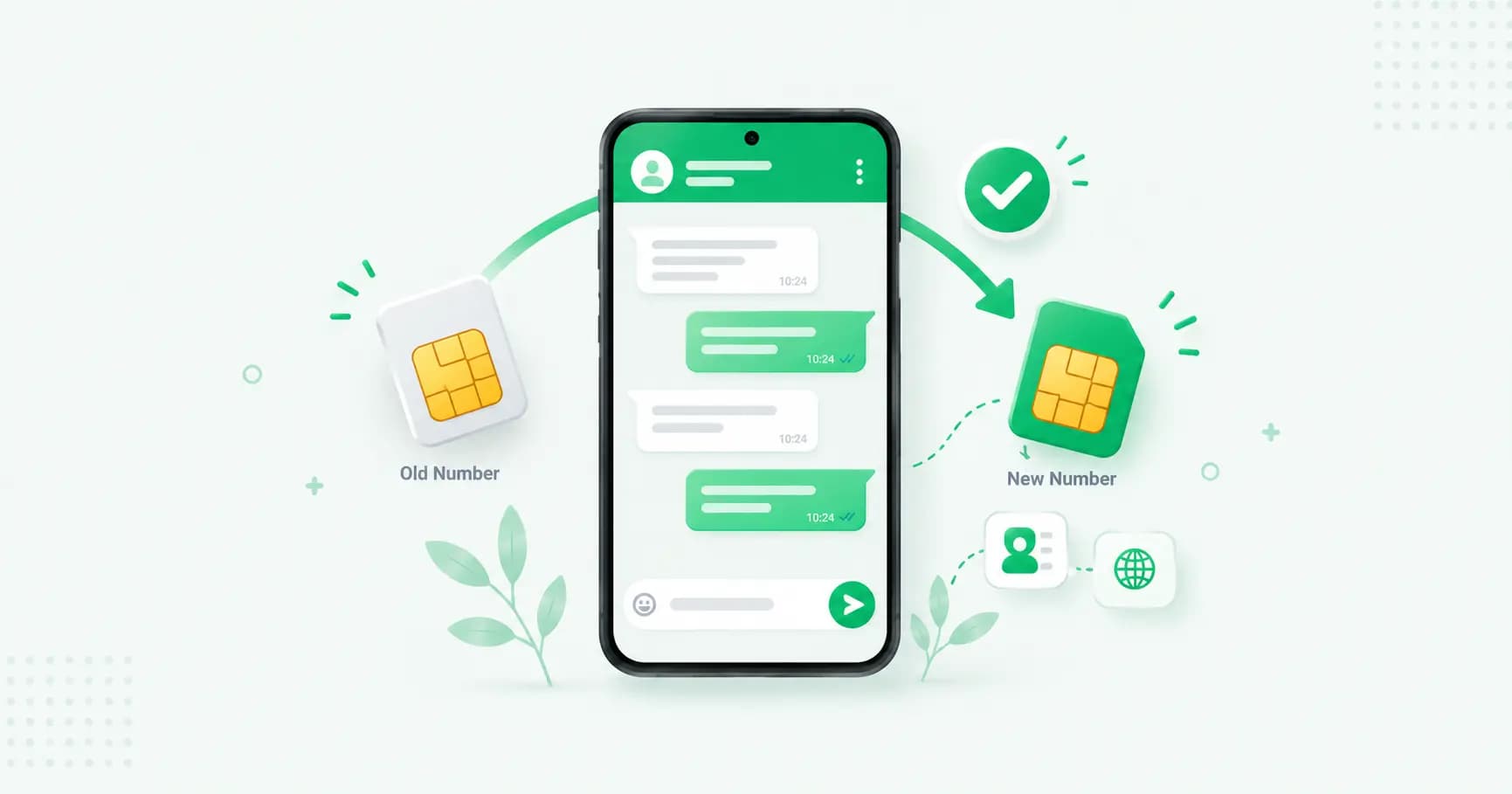
A business WhatsApp number is an asset printed on your website, cards and ads — so changing it needs care, or customers keep messaging a dead number. This 2026 guide covers all three "changes": switching the phone number, converting personal to business, and migrating to the API — the exact steps for each, and how to lose no chats or customers.

On this page
Changing the number on a WhatsApp Business account is more delicate than on a personal one — because a business number isn't just a login, it's an asset printed on your website, your cards, your packaging and your ad campaigns. Get the order wrong and customers keep messaging a dead number. This guide covers the three situations people mean by "changing my number," the exact steps for each, and how to make sure no customer or conversation gets lost.
First, which "change" do you actually mean?
Three different things get called "changing my WhatsApp Business number," and they work completely differently:
Changing the phone number on your WhatsApp Business account (new SIM, moved cities, switched carriers) — the built-in Change Number feature.
Converting a personal WhatsApp into a WhatsApp Business account, keeping the same number — the migration most small businesses do first.
Migrating your existing number from the WhatsApp Business app to the WhatsApp Business API for automation and a team.
Let's take each in turn.
1. Changing your WhatsApp Business phone number
WhatsApp's Change Number feature transfers your existing account to a new number — it doesn't create a second account. The new number inherits your chat history, account info, profile photo, status and settings. It's built for exactly this: keeping the same phone but switching the SIM, or keeping the device and moving to a different number.
Before you start:
Install and activate the new SIM (or have the new number ready to receive an SMS or call).
Back up your chats first, as a safety net (see our backup guide).
Don't delete your account and start fresh — that loses everything. Use Change Number.
The steps:
Open WhatsApp Business → More options (⋮) → Settings.
Tap Account → Change number.
Enter your old number and your new number, then tap Next.
Choose who to notify — All contacts, Contacts you chat with, or Custom. For a business number, notify at least the customers you have open chats with, so they know where to reach you.
WhatsApp sends a verification code to the new number by SMS or call. Enter it.
Your account migrates to the new number, keeping your history and settings.
What carries over: chats, media, groups (you stay in them), profile, and settings. What to check: WhatsApp-only contacts (people not saved in your phone's address book) may not carry cleanly — export any critical ones first.
Important: the new number must not already be registered on WhatsApp. If it is, you'll need to delete that account first or use a different number.
2. Converting a personal WhatsApp to a Business account (same number)
If your "change" means turning your personal WhatsApp into a business account while keeping the number, that's a conversion, not a number change — and Meta built it to keep your history intact.
Back up your chats first.
Install WhatsApp Business and verify your existing number.
When prompted, choose to transfer your chat history to WhatsApp Business.
Set up your business profile — name, category, hours, catalog.
Your contacts see no change and get no notification; the number is the same, so they reach you exactly as before. Note two things: WhatsApp-only contacts may not transfer cleanly (export them first), and if you ever switch back to personal WhatsApp later, business data like your catalog and labels won't come back with you. Full walkthrough in our guide to creating a WhatsApp Business account.
3. Migrating your number to the WhatsApp Business API
When your business outgrows the app — a team sharing one number, automation, broadcasts beyond 256 contacts — you migrate the same number to the WhatsApp Business API. Two ways to do this in 2026, and the difference matters enormously:
Coexistence (the 2026 way — recommended). As of March 2026, Meta's Coexistence feature lets you run the Business app and the API on the same number at once, with messages mirrored between them. This is the safe route: your phone keeps working, your app chat history stays accessible, and your team's new inbox handles the same number in parallel. You transition gradually instead of flipping a switch.
Full migration (the older way — has a trap). If you fully move the number to the API without Coexistence, be warned: once the API is activated on the number, your WhatsApp Business app chat history is gone. Businesses discover this a week later, when it's too late. So if you go this route, export your important chats first — before you even start.
The setup, either way: you connect through a provider via Meta's Embedded Signup, verify the number, and approve your display name. Registration takes about 5–10 minutes once your Meta Business Manager is verified; message syncing can take longer with a big history. Your customers notice nothing — same number, same business name — the change is entirely on your side.
Two things people get wrong here: group chats don't sync between the app and API (API group support is very limited), so keep group conversations on the app if you rely on them; and the API isn't the app — your team uses a different inbox, so spend half an hour training them before you go live.
How to change your number without losing customers
Whichever path you're on, the risk is rarely lost messages — it's making the switch in the wrong order and stranding customers on an old number. A short checklist:
Back up (or export) first. Always, before anything else.
Do it in the right order. Activate the new SIM before Change Number; export chats before a full API migration.
Tell your customers. For a Change Number, use the notify option. For any switch, message your most active contacts the day before — 60 seconds that prevents a week of confusion.
Update the number everywhere it's published — website, Google Business Profile, Instagram bio, click-to-chat links, QR codes, business cards, packaging and ad campaigns. A number changed in WhatsApp but not on your website still sends customers to the wrong place.
Check your groups after the change to confirm you're still in the important ones.
Frequently asked questions
How do I change my WhatsApp Business number?
Use the built-in Change Number feature: go to Settings → Account → Change number, enter your old and new numbers, choose who to notify, and verify the new number with the code sent by SMS or call. Your chat history, profile and settings transfer to the new number. Back up your chats first as a precaution.
Will I lose my chats if I change my WhatsApp Business number?
No, if you use the official Change Number feature — your chat history, media, groups and settings all carry over to the new number. You would only lose history by deleting your account and starting fresh, which you should not do. Back up beforehand as a safety net.
Do my contacts get notified when I change my WhatsApp number?
Only if you choose to notify them. The Change Number feature lets you notify all contacts, only those you have open chats with, or a custom selection. For a business number, notifying at least your active customers is wise so they know where to reach you.
Can I keep the same number when converting to WhatsApp Business?
Yes. Converting a personal WhatsApp to a Business account keeps the same number and transfers your chat history. Your contacts see no change and receive no notification, since the number stays the same.
How do I move my WhatsApp Business number to the API without losing my chats?
Use Meta's Coexistence feature (available since March 2026), which runs the Business app and API on the same number at once, keeping your app history accessible. If you do a full migration instead, your app chat history is lost once the API activates, so export your important chats before you start.
Does my number change when I move to the WhatsApp Business API?
No. You keep the same number when migrating to the API. Your customers notice nothing — same number, same business name — the change is entirely on your side, in the inbox your team uses.
Can I reverse a WhatsApp number change or migration?
A Change Number can be done again to switch back. A full API migration can be reversed by removing the number from the API and re-registering it on the Business app, though most businesses that migrate don't go back. Converting personal to business is also reversible, but business data like catalogs and labels won't transfer back.
What should I do after changing my WhatsApp Business number?
Update the number everywhere it's published — website, Google Business Profile, social bios, click-to-chat links, QR codes, business cards, packaging and ads — notify your active customers, and check you're still in your important groups. The most common mistake is changing it in WhatsApp but leaving old numbers live elsewhere.
The bottom line
Changing a WhatsApp Business number is safe when you do it in the right order: back up or export first, use the official Change Number feature (or Coexistence for an API move), notify your customers, and update the number everywhere it appears in public. The messages rarely get lost — the customers do, when an old number is left live on a website or a card. Handle the order and the announcements, and the switch is painless.
Moving to a team or automation? Splashify Pro migrates your existing number to the official WhatsApp Business API with Coexistence support, so you keep your number, your history and your customers. Free for 14 days.
Related posts
More articles you might find useful.
How to Schedule WhatsApp Messages (Android, iPhone, Web & Business) — 2026
WhatsApp still has no built-in scheduler — and the "Tools → Schedule message" option some sites mention doesn't exist. This 2026 guide covers every method that actually works: SKEDit on Android, Shortcuts on iPhone (with a catch), browser extensions on Web, and cloud scheduling on the Business API — plus what each one can't do.
WhatsApp Communities: How to Create and Manage One (Complete 2026 Guide)
WhatsApp Communities tie related groups together under one name with an admin-only announcement group that reaches everyone at once — up to 5,000 members across 50 groups. This 2026 guide covers how to create and manage a Community, how it compares to groups and Channels, the limits, and when it's the wrong tool for customer messaging.
How to Create a WhatsApp Business Account: Step-by-Step Guide (2026)
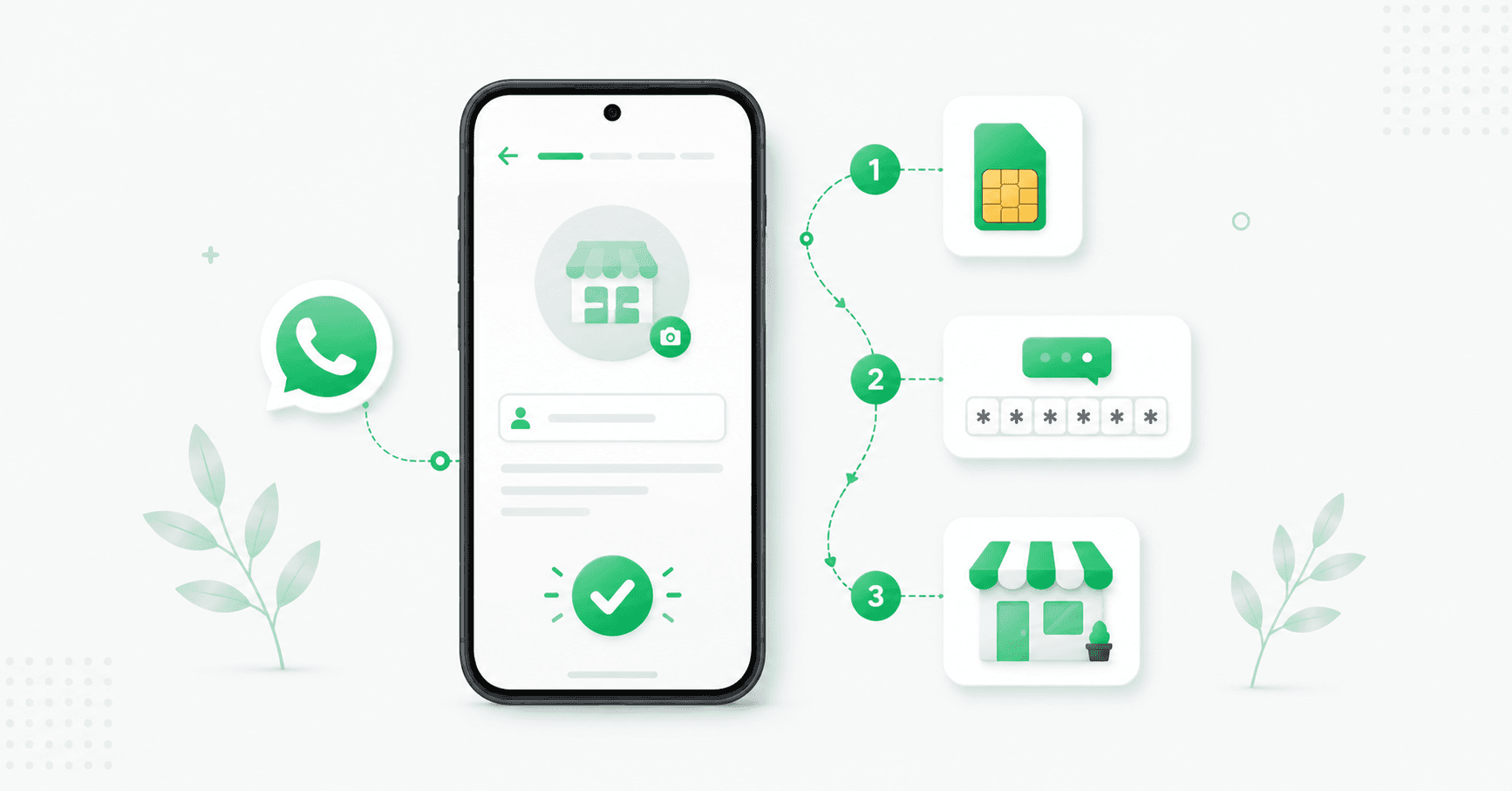
Creating a WhatsApp Business account is free and takes five minutes — but the number you pick, whether you convert your personal WhatsApp, and what you name it are easier to get right the first time. This 2026 guide walks through every step, plus using a landline, converting an existing number, and the difference between the app account and the API account.