How to Backup and Restore WhatsApp Chats (Android & iPhone, 2026)
WhatsApp doesn't store your chats on its servers — if your phone goes, so do they. This 2026 guide shows how to back up on Android (Google Drive) and iPhone (iCloud), restore on a new phone, turn on encrypted backup safely, move between Android and iPhone, and fix the most common backup failures.

On this page
A cracked screen, a lost phone, a failed update — and years of conversations, photos and voice notes are gone. Unless you have a backup, which takes about three minutes to set up and then runs itself. This guide covers how to back up WhatsApp on Android and iPhone, how to restore on a new phone, how encrypted backups work (and the one way they can lock you out), and how to fix the most common failures.
How WhatsApp backup works
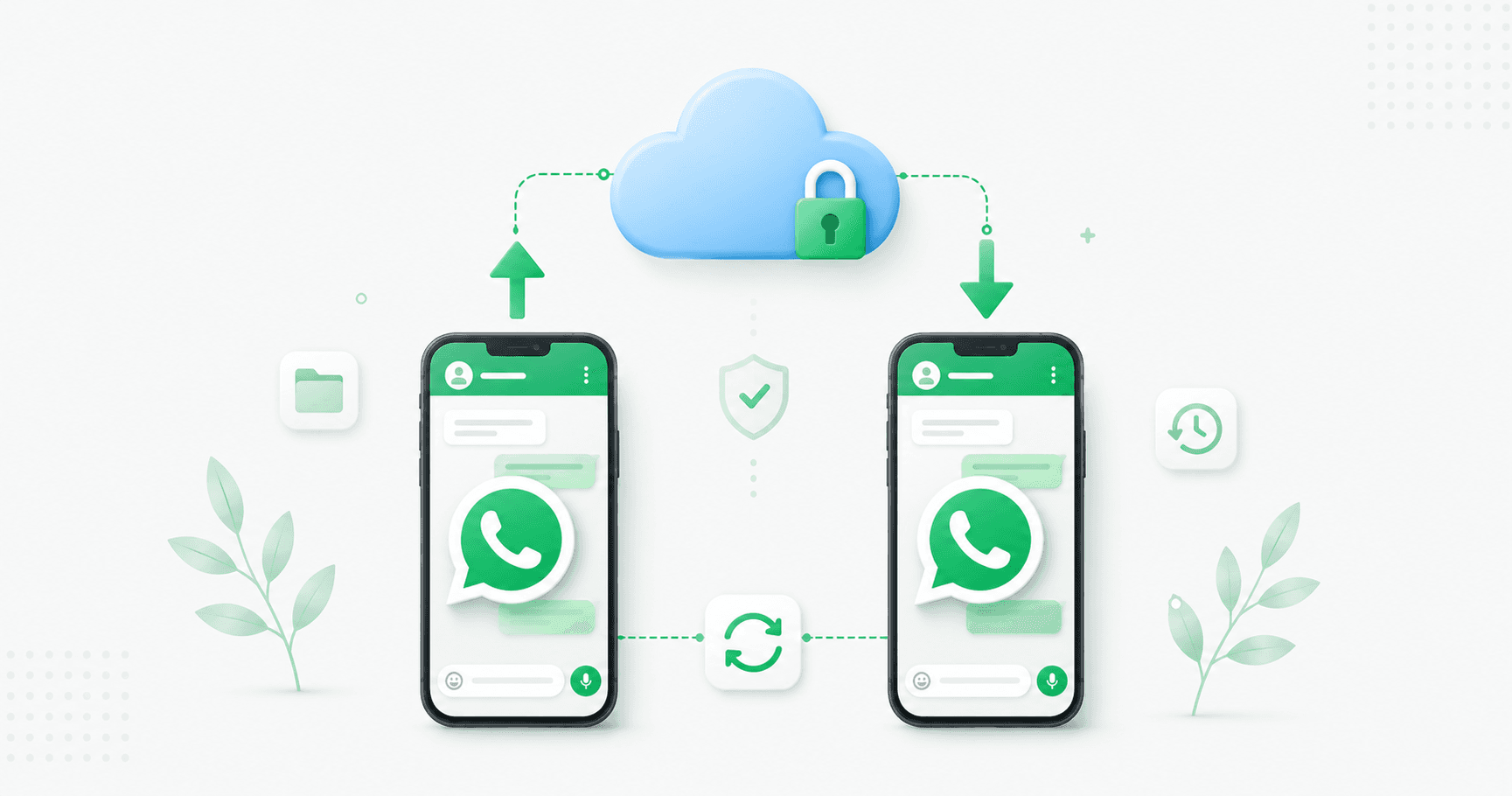
WhatsApp doesn't store your chats on its own servers. Your messages live on your phone, so if the phone goes, so do they — unless you've backed up to the cloud:
Android backs up to Google Drive, tied to your Google account.
iPhone backs up to iCloud, tied to your Apple ID.
Both can run automatically on a schedule. A backup includes your messages, photos, voice notes and documents, with videos optional (they're by far the largest part).
Two things to know upfront:
Backups need space in your cloud account. On Android, WhatsApp backups count against your Google account's 15 GB free storage (shared with Gmail and Google Photos). On iPhone, iCloud's free tier is just 5 GB. A few years of chats with media can easily run 5–20 GB, so a full backup may need a paid Google One or iCloud+ plan.
Backups are tied to your phone number and cloud account. To restore, you need the same number and the same Google or Apple account. You can't pull a backup off Google Drive as a file or open it without WhatsApp.
How to back up WhatsApp on Android
Open WhatsApp and tap the three-dot menu → Settings.
Tap Chats → Chat backup.
Tap Google Account and choose the Gmail account to back up to.
Tap Back up to Google Drive and pick a frequency — Daily is the sensible default.
Decide whether to Include videos (turn it off if storage or data is tight).
Tap Back up to run one now.
The first backup can take anywhere from 10 to 60 minutes depending on how much history you have, so run it on Wi-Fi with the phone charging.
Android also keeps a local backup on your phone's storage, refreshed daily and kept for about a week. It's useful if Google Drive fails, but it dies with the phone — so treat it as a fallback, not your main backup.
How to back up WhatsApp on iPhone
Open WhatsApp and tap Settings (bottom right).
Tap Chats → Chat Backup.
Tap Back Up Now for an immediate backup.
Tap Auto Backup and choose Daily, Weekly or Monthly.
Toggle Include Videos on or off.
iCloud Drive must be switched on in your iPhone's iCloud settings, and you'll need enough free iCloud space — check Settings → your name → iCloud → Manage Storage if a backup won't complete.
Turn on end-to-end encrypted backup (recommended)
Your WhatsApp messages are end-to-end encrypted. Your backup isn't, by default — the file sitting in Google Drive or iCloud can be read by anyone who gets into that cloud account. Encrypted backup closes that gap.
How to enable it (Android and iPhone):
Go to Settings → Chats → Chat backup.
Tap End-to-end encrypted backup → Turn on.
Choose to protect it with a password you create, or a 64-digit encryption key WhatsApp generates.
Confirm and let the backup complete.
Read this before you turn it on. If you lose the password or key, your backup is permanently unusable. There is no reset, no recovery link and nothing WhatsApp support can do — that's the entire point of the encryption. Store the password in a password manager, or write the 64-digit key somewhere physically safe. For most people the password option is the practical choice; the 64-digit key is stronger but far easier to lose.
How to restore WhatsApp on a new phone
Restoring works the same way on Android and iPhone, with one rule: same phone number, same cloud account as the backup.
Make a fresh backup on your old phone first, so nothing recent is missed.
Install WhatsApp on the new phone.
Verify your phone number — the same number the backup was made under.
Make sure the new phone is signed into the same Google account (Android) or Apple ID (iPhone).
WhatsApp detects the backup and asks if you want to Restore. Tap it.
If your backup is encrypted, enter your password or 64-digit key.
Wait for messages to restore, then media downloads in the background.
On iPhone, restoring needs free space of roughly twice the backup size on the device, so clear room first if the backup is large.
Moving between Android and iPhone
This is the case that catches people out: a Google Drive backup can't be restored to an iPhone, and an iCloud backup can't be restored to an Android. The two systems aren't compatible.
For a cross-platform move, use WhatsApp's built-in chat transfer — on the new phone, during setup, choose the option to transfer from your old device and scan the QR code shown; both phones need to be on the same Wi-Fi network. Don't rely on your cloud backup for this, and be wary of third-party transfer tools.
Export a chat as an extra copy
For an important conversation — a supplier thread, a legal exchange, family memories — you can export it separately:
Open the chat, tap the menu → More → Export chat.
Choose with or without media.
Save the file or send it to yourself by email.
It's a plain text file, so it's readable anywhere, but it isn't a restore source — it's a record. Think of it as a second copy for the chats you really can't lose.
Common backup and restore problems (and fixes)
"Backup failed" or stuck. Usually storage: check your Google account or iCloud isn't full, and that the phone itself has free space. Switch to Wi-Fi, make sure the phone is charged, and try again. Deleting old WhatsApp backups you no longer need often frees the room.
"Couldn't restore" or "No backup found." Almost always a mismatch — a different phone number, or a different Google account / Apple ID than the backup used. Sign into the account you backed up from and re-verify.
Asked for a password you don't remember. If encrypted backup was on and the password is lost, the backup can't be recovered. Your only path is any older unencrypted backup, or the local backup on an Android phone if you still have it.
Restore is very slow. Large media backups take time. Let messages restore first, and let media finish in the background over Wi-Fi.
Old backup disappeared from Google Drive. Google can remove WhatsApp backups that haven't been refreshed for an extended period. Keep automatic backup on so it's always current.
Want the backup as a file? You can't. WhatsApp backups are encrypted and only usable by WhatsApp during number verification — they can't be downloaded or opened separately.
Best practices
Set automatic daily backup and forget about it. Manual-only backups are the ones that don't exist when you need them.
Check your cloud storage every few months — a full account silently stops backups.
Turn on encrypted backup, and save the password properly. Both halves matter.
Back up before you switch phones, every time.
Export the chats you'd be devastated to lose as a separate copy.
Use one Google account or Apple ID for WhatsApp and stick with it.
A note for businesses
If your WhatsApp is a customer channel, backups matter even more — and they have a weakness: they're tied to one phone and one person. If the phone is lost or the employee leaves, so does the record.
That's one reason growing businesses move customer conversations to the WhatsApp Business API: every chat lives in a shared inbox in the cloud, accessible to the whole team, with nothing to back up and no single phone to lose. (Still on the free app? Our WhatsApp Business app guide covers when it's time to move.)
Frequently asked questions
How do I back up WhatsApp chats?
On Android, go to Settings → Chats → Chat backup, choose your Google account, set a backup frequency and tap Back up. On iPhone, go to Settings → Chats → Chat Backup and tap Back Up Now, then set Auto Backup to Daily. Backups go to Google Drive on Android and iCloud on iPhone.
Do WhatsApp backups use my Google Drive storage?
Yes. On Android, WhatsApp backups count against your Google account's 15 GB free storage, shared with Gmail and Google Photos. If you're over the limit, backups stop until you free space or upgrade to Google One. On iPhone, backups use your iCloud storage, which has a 5 GB free tier.
How do I restore WhatsApp chats on a new phone?
Install WhatsApp on the new phone, verify the same phone number the backup was made with, and sign into the same Google account (Android) or Apple ID (iPhone). WhatsApp will detect the backup and prompt you to Restore. If the backup is encrypted, enter your password or 64-digit key.
What happens if I forget my WhatsApp encrypted backup password?
The backup becomes permanently unusable. There is no reset or recovery option — WhatsApp cannot access encrypted backups by design. Store your password in a password manager or keep the 64-digit key somewhere physically safe before you turn the feature on.
Can I restore a Google Drive backup to an iPhone?
No. Google Drive backups only restore to Android, and iCloud backups only restore to iPhone. To move between platforms, use WhatsApp's built-in chat transfer during setup on the new phone, with both devices on the same Wi-Fi network.
Can I download my WhatsApp backup from Google Drive?
No. WhatsApp backups are encrypted and can only be restored through the WhatsApp app during phone number verification. They can't be downloaded, opened or read as separate files. To keep a readable copy of a specific chat, use the Export chat option instead.
Why does my WhatsApp backup keep failing?
The most common cause is full storage — either your Google account or iCloud, or the phone itself. Free up space, delete old backups you don't need, switch to Wi-Fi, keep the phone charged and try again. Also confirm you're signed into the correct account.
How often should I back up WhatsApp?
Set automatic backup to Daily. It runs in the background, usually overnight on Wi-Fi, and means you never lose more than a day of messages if something goes wrong.
The bottom line
Turning on daily backup takes three minutes and protects years of conversations. Turn on encrypted backup too — and save that password somewhere real, because nobody can recover it for you. Then, before you ever switch phones, run one more backup. Do those three things and losing a phone becomes an inconvenience instead of a loss.
Running WhatsApp for customers? Move it somewhere nothing depends on a single phone. Splashify Pro keeps every customer conversation in a cloud team inbox on the official WhatsApp API — free for 14 days.
Related posts
More articles you might find useful.
How to Change or Migrate Your WhatsApp Business Number (2026 Guide)
A business WhatsApp number is an asset printed on your website, cards and ads — so changing it needs care, or customers keep messaging a dead number. This 2026 guide covers all three "changes": switching the phone number, converting personal to business, and migrating to the API — the exact steps for each, and how to lose no chats or customers.
How to Schedule WhatsApp Messages (Android, iPhone, Web & Business) — 2026
WhatsApp still has no built-in scheduler — and the "Tools → Schedule message" option some sites mention doesn't exist. This 2026 guide covers every method that actually works: SKEDit on Android, Shortcuts on iPhone (with a catch), browser extensions on Web, and cloud scheduling on the Business API — plus what each one can't do.

WhatsApp Communities: How to Create and Manage One (Complete 2026 Guide)
WhatsApp Communities tie related groups together under one name with an admin-only announcement group that reaches everyone at once — up to 5,000 members across 50 groups. This 2026 guide covers how to create and manage a Community, how it compares to groups and Channels, the limits, and when it's the wrong tool for customer messaging.