How to Transfer WhatsApp from Android to iPhone (and iPhone to Android) — 2026
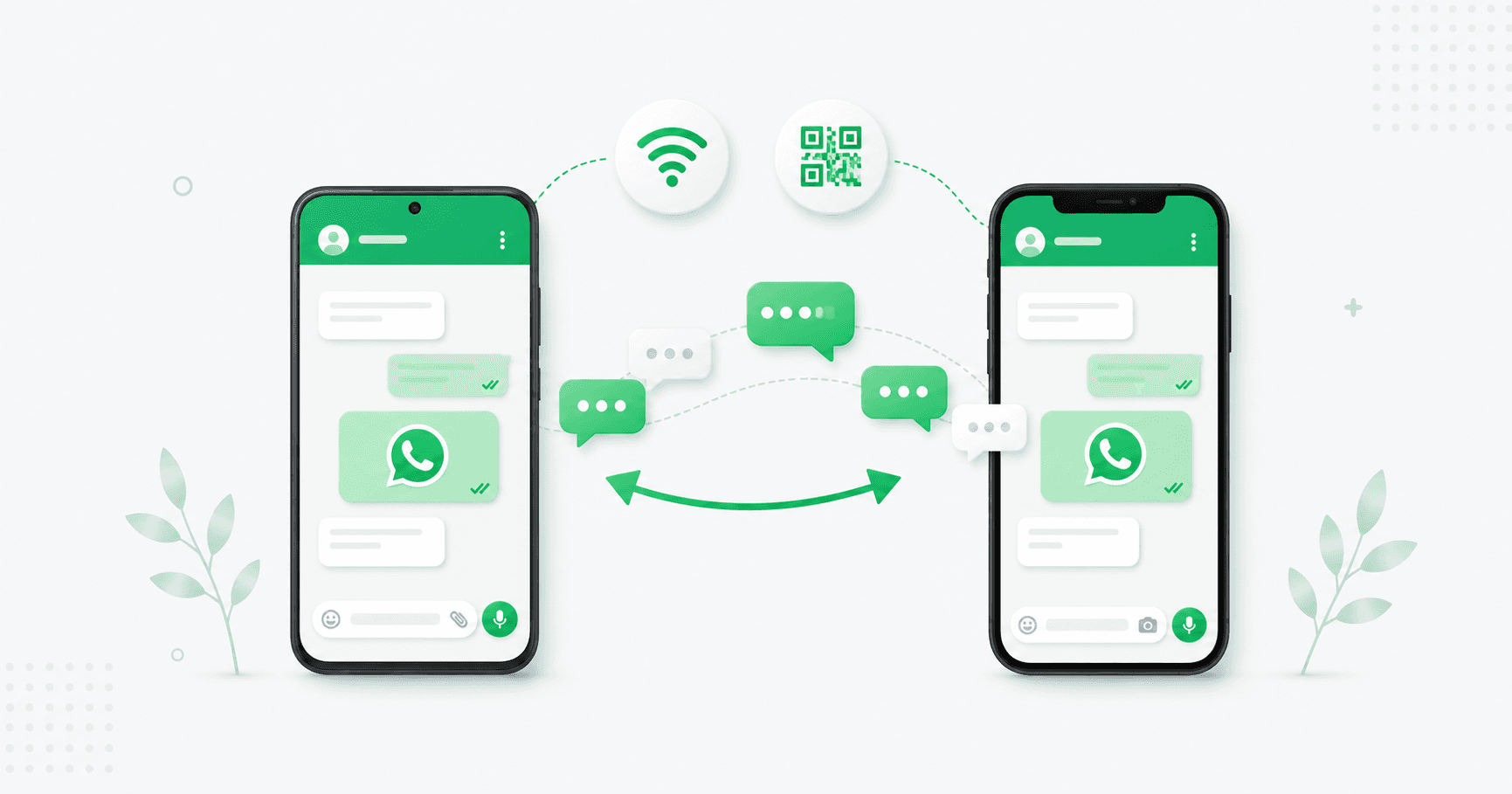
Moving WhatsApp between Android and iPhone is now free and official in both directions — but each direction uses a different method, and Android → iPhone only works before the new iPhone is set up. This 2026 guide covers both transfers step by step, what moves and what doesn't, and how to fix the common failures.

On this page
Switching between Android and iPhone used to mean leaving your WhatsApp history behind. Not any more — WhatsApp now has official, free, end-to-end encrypted ways to move your chats in both directions. But the two directions use completely different methods, and one of them has a requirement that trips up almost everyone. Read this before you set up the new phone.
The one thing to know before you start
Your cloud backup won't work across platforms. A Google Drive backup can't be restored to an iPhone, and an iCloud backup can't be restored to an Android. The systems aren't compatible. So forget the backup for this job — you'll use WhatsApp's transfer tools instead.
And the big one for anyone going to iPhone: Android → iPhone only works while the iPhone is on its initial setup screen (the "Apps & Data" step). If you've already set the iPhone up and started using it, the official method requires you to factory-reset it and start over. There is no workaround. So if you're reading this with a shiny new iPhone still in the box — good, don't set it up yet.
What transfers (and what doesn't)
Both directions move:
Your account info and profile photo
Individual and group chats, with full history
Photos, videos, voice notes and documents
Your settings
What doesn't transfer:
Call history
Display name (you'll set it again)
Payment data
Chats with a business you've blocked
Also note: transferred chats aren't backed up to the cloud on the new phone until you create a fresh backup there. Do that once you're settled.
Requirements (both directions)
The same phone number on both phones — this is how WhatsApp knows it's you
Both phones on the same Wi-Fi network, with both plugged in or well charged
WhatsApp updated to the latest version on both phones
Android 5 or later and iOS 15.5 or later
Don't delete anything from the old phone until you've confirmed the transfer worked
Android → iPhone: using Move to iOS
Android to iPhone goes through Apple's Move to iOS app, with WhatsApp built into the process.
Set up the iPhone only as far as the "Apps & Data" screen. Don't go further, and don't install WhatsApp on it yet. (Already set it up? Go to Settings → General → Transfer or Reset iPhone → Erase All Content and Settings, and start again.)
On the iPhone, choose Move Data from Android. It shows a code.
On your Android, install Move to iOS from the Play Store, open it, and enter the code.
When Move to iOS asks what to transfer, select WhatsApp and tap Continue.
Android prompts you to open WhatsApp. Tap Start. WhatsApp prepares your chats — this can take from a few minutes to half an hour depending on your history.
When it's ready, tap Next to return to Move to iOS, then Continue. Wait for it to confirm the transfer is complete.
Finish setting up the iPhone, then install WhatsApp from the App Store.
Open WhatsApp, verify with the same phone number, and tap Start when prompted to complete the import.
Your chats appear, media follows. Your Android still has everything until you delete WhatsApp from it.
iPhone → Android: using WhatsApp's QR transfer
iPhone to Android is simpler — it's built straight into WhatsApp and works with any Android phone, no extra app.
On the iPhone, open WhatsApp and go to Settings → Chats → Transfer chat history → Transfer to Android.
When the chats are prepared, tap Continue, and allow camera access if asked. Keep the iPhone unlocked.
On the Android, install WhatsApp, open it, and verify with the same number you use on the iPhone.
When prompted, tap Allow so the phones can connect. The Android shows a QR code.
Scan the QR code with the iPhone's camera (in WhatsApp).
Wait for the transfer to complete, then tap Next on the Android to open your chats.
Keep both phones on the same Wi-Fi and unlocked throughout.
Moving to the same platform (Android → Android, iPhone → iPhone)
Same-platform moves are easier still. You can either restore from your cloud backup — make a fresh backup on the old phone, verify the same number on the new one, and tap Restore (see our backup and restore guide) — or use the same Transfer chat history QR method above, which moves everything directly without touching the cloud. The QR method is faster and skips the storage limits entirely.
About third-party transfer tools
You'll see paid apps promising to move WhatsApp between platforms "without a factory reset." Some work, but be aware of what you're doing: you're handing your entire chat history — every message, photo and document — to a third-party program. The official methods above are free, end-to-end encrypted, and WhatsApp itself never sees your data. Use them unless you genuinely have no other option.
Common problems and fixes
"I already set up my iPhone." For Android → iPhone, you'll need to reset it (Settings → General → Transfer or Reset iPhone → Erase All Content and Settings). Back up anything else on the iPhone first.
The transfer stalls or fails. Almost always Wi-Fi or power. Put both phones on the same network, keep them close together, plugged in and unlocked, and start again. Update WhatsApp on both if you haven't.
"Couldn't verify" or the number doesn't match. It must be exactly the same number on both phones. If you've also changed numbers, use WhatsApp's Change Number feature first, then transfer.
Media is missing after transfer. Give it time — messages arrive first and media downloads in the background over Wi-Fi.
My old phone still has my chats. Is that a problem? No. The old phone keeps its copy until you delete WhatsApp or wipe it. Just don't use both at once for the same number.
Can I move only some chats? No — the official transfer moves your whole history. To keep just one conversation as a file, use Export chat inside that chat instead.
Best practices
Don't set up the new iPhone until you've read the Android → iPhone steps.
Update WhatsApp on both phones before starting.
Same Wi-Fi, both charged, both unlocked — most failures come from breaking one of these.
Keep the old phone intact until you've opened your chats on the new one and checked a few.
Make a fresh cloud backup on the new phone once you're done.
A note for businesses
If the number you're moving is your customer line, a phone switch is a genuinely risky moment — one failed transfer and your order history, enquiries and conversations are gone with the old device. It's also a reminder that a customer channel that lives on one handset is fragile.
That's what the WhatsApp Business API fixes: your conversations sit in a cloud team inbox, independent of any phone, so switching devices — or staff — never puts your history at risk. (On the free app for now? Our WhatsApp Business app guide covers when to make the move.)
Frequently asked questions
Can I transfer WhatsApp from Android to iPhone?
Yes, for free, using Apple's Move to iOS app with WhatsApp built into the process. The iPhone must be at its initial "Apps & Data" setup screen — if you've already set it up, you'll need to factory-reset it first. You'll also need the same phone number on both phones, both on the same Wi-Fi.
Can I transfer WhatsApp from iPhone to Android?
Yes. On the iPhone go to Settings → Chats → Transfer chat history → Transfer to Android, then verify the same number on the Android, allow the phones to connect, and scan the QR code the Android displays with the iPhone's camera. It works with any Android phone and needs no extra app.
Do I need to factory reset my iPhone to transfer WhatsApp?
For Android → iPhone using the official Move to iOS method, yes, if the iPhone has already been set up — the transfer only works from the initial setup screen. iPhone → Android has no such requirement.
Can I restore my Google Drive WhatsApp backup on an iPhone?
No. Google Drive backups only restore to Android, and iCloud backups only restore to iPhone. To move between platforms you must use WhatsApp's transfer tools — Move to iOS for Android → iPhone, or the QR-code transfer for iPhone → Android.
What data transfers when I move WhatsApp between Android and iPhone?
Your account info, profile photo, individual and group chats with full history, photos, videos, voice notes, documents and settings. Call history, display name and payment data don't transfer.
Do I need the same phone number to transfer WhatsApp?
Yes. Both official transfer methods require verifying the same phone number on the new phone. If you're changing numbers as well, use WhatsApp's Change Number feature first, then transfer.
Will my old phone lose its chats after the transfer?
No. The old phone keeps its full copy until you delete WhatsApp or wipe the device. Keep it intact until you've confirmed everything arrived on the new phone.
Is it safe to use third-party WhatsApp transfer apps?
The official methods are free and end-to-end encrypted, and WhatsApp never sees your data. Third-party tools require you to hand your entire chat history to an outside program, so use them only if you have no other option.
The bottom line
Moving WhatsApp between Android and iPhone is now free and official in both directions — you just have to use the right tool for the right direction, and for Android → iPhone, do it before the new iPhone is set up. Same number, same Wi-Fi, both charged, old phone untouched until you've checked. Follow that and your history arrives intact.
Running a customer number on your phone? Put it somewhere a phone switch can't break. Splashify Pro keeps every customer conversation in a cloud team inbox on the official WhatsApp API — free for 14 days.
Related posts
More articles you might find useful.
How to Change or Migrate Your WhatsApp Business Number (2026 Guide)
A business WhatsApp number is an asset printed on your website, cards and ads — so changing it needs care, or customers keep messaging a dead number. This 2026 guide covers all three "changes": switching the phone number, converting personal to business, and migrating to the API — the exact steps for each, and how to lose no chats or customers.
How to Schedule WhatsApp Messages (Android, iPhone, Web & Business) — 2026
WhatsApp still has no built-in scheduler — and the "Tools → Schedule message" option some sites mention doesn't exist. This 2026 guide covers every method that actually works: SKEDit on Android, Shortcuts on iPhone (with a catch), browser extensions on Web, and cloud scheduling on the Business API — plus what each one can't do.
WhatsApp Communities: How to Create and Manage One (Complete 2026 Guide)
WhatsApp Communities tie related groups together under one name with an admin-only announcement group that reaches everyone at once — up to 5,000 members across 50 groups. This 2026 guide covers how to create and manage a Community, how it compares to groups and Channels, the limits, and when it's the wrong tool for customer messaging.