How to Set Up WhatsApp Auto-Reply and Away Messages (2026 Guide)
An auto-reply catches the customer who messages at 11pm or while you're busy — answering instantly, setting expectations, and keeping the lead warm. This 2026 guide shows how to set up greeting, away and quick-reply messages on the free WhatsApp Business app, where those tools run out, and how to build real keyword and chatbot auto-replies on the API.

On this page
A customer messages you at 11pm. Or during a wedding you're attending. Or while you're already on three other chats. If they hear nothing back, a good number of them move on. An auto-reply catches that moment — a message that answers instantly, sets expectations, and keeps the lead warm until you can respond. Here's how to set up greeting and away messages on the free WhatsApp Business app, where those built-in tools run out, and what real auto-reply looks like.
What auto-reply on WhatsApp actually means
"Auto-reply" covers a few different things, and knowing which you need saves a lot of confusion:
Greeting message — sent automatically the first time someone messages you (or after 14 days of silence in a chat).
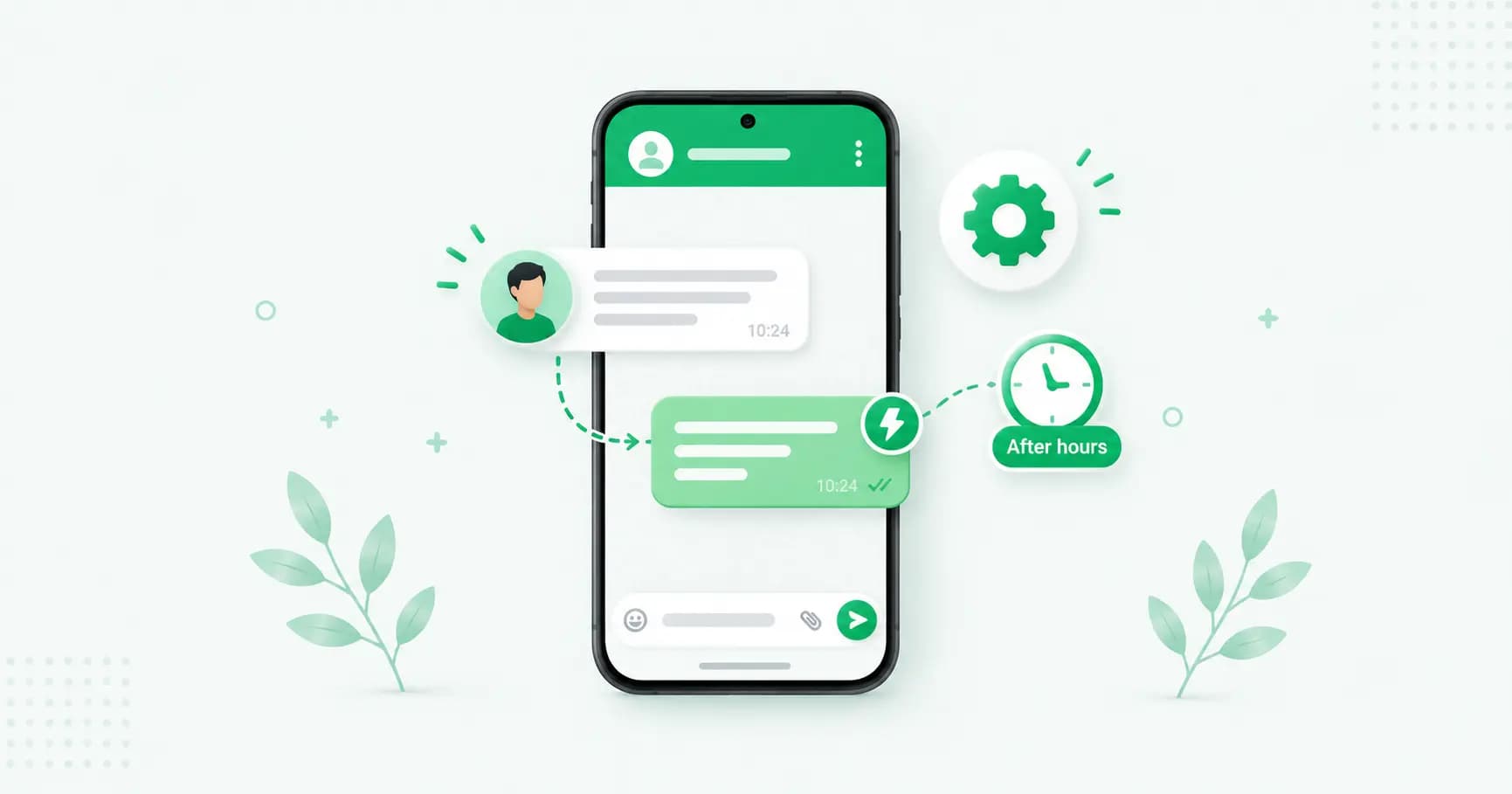
Away message — sent automatically when you're outside your set business hours.
Quick replies — saved answers you insert manually with a shortcut. Not automatic, but they speed up repetitive responses.
Keyword and rule-based auto-replies — a message that fires based on what the customer says ("send PRICE for our rate card"). This is not in the free app — it needs the API.
The first three live in the free WhatsApp Business app. Let's set them up.
How to set up a greeting message
The greeting welcomes first-time customers and buys you time.
Open WhatsApp Business and tap More options (⋮) → Business tools.
Tap Greeting message.
Toggle Send greeting message on.
Tap the message to edit it. Write something that welcomes them and sets a response expectation.
Under Recipients, choose who gets it — Everyone, Everyone not in address book, Everyone except…, or Only send to….
Save.
A good greeting:
Hi! 👋 Thanks for messaging {{business_name}}. We usually reply within a couple of hours between 10am and 7pm. In the meantime, tell us what you're looking for and we'll help as soon as we can.
Keep it warm, set a realistic time, and invite them to say what they need so you have context when you reply.
How to set up an away message
The away message covers you outside working hours, so no one is left wondering.
In Business tools, tap Away message.
Toggle Send away message on.
Edit the message text.
Set a schedule:
Always send — for when you're away for a stretch
Custom schedule — specific hours
Outside of business hours — uses the hours in your business profile (set these first)
Choose your recipients and save.
A good away message:
Thanks for reaching out! 🙏 We're currently closed and will reply when we reopen at {{time}} tomorrow. For urgent matters, {{alternative}}. We'll get back to you first thing.
Give the reopening time, offer an alternative for genuine emergencies, and reassure them they're in the queue.
How to set up quick replies
Quick replies aren't automatic, but they're the biggest daily time-saver in the app — saved answers you drop in with a shortcut.
In Business tools, tap Quick replies.
Tap Add (+).
Write the message (your saved answer), set a shortcut (e.g.
/hours,/price,/location), and add keywords.Save. In any chat, type / and pick the reply.
Set up your top five first — hours, pricing, location, delivery, and "how do I order." You'll use them dozens of times a week.
Writing auto-replies that work
A few principles, whichever message you're writing:
Set a real expectation. "We reply within 2 hours" beats silence — but only if it's true. Over-promising and under-delivering is worse than no message.
Sound human. Warm and simple, not a corporate wall of text.
Give them something to do. Ask what they need, share a link, or point to your catalog — so the wait is productive.
Offer an emergency route in away messages, if you have one.
Match your hours to reality. If your profile says you're open, the greeting fires, not the away message. Keep them accurate.
Don't overuse emojis — one or two land warmly; ten look spammy.
The limits of the free app's auto-replies
Here's the honest ceiling, because it's exactly where most businesses hit friction:
One static greeting and one away message. No variations by product, language or campaign.
No keyword replies. The app can't respond based on what the customer actually asks. It can't send your price list when someone types "price," or your address when someone types "location."
No real conversation. It can't answer a follow-up, qualify a lead, or route the chat anywhere.
No logic or menus. No "reply 1 for sales, 2 for support."
Solo only. No team, no assignment, no handoff — the auto-reply just sits there until you personally pick up.
No analytics. You can't see what's asked most or what converts.
For a solo owner, the greeting-and-away combo is genuinely useful. The moment you want replies that respond to what customers say, or that keep working while a team handles the overflow, you've reached the edge of the free app.
Real auto-reply: keyword replies and chatbots on the API
This is where auto-reply becomes automation. On the WhatsApp Business API, you can build replies that actually respond to the customer:
Keyword replies — "Send PRICE for our rate card," "Type BOOK to see slots" — the right answer fires based on what they type.
A chatbot or AI agent that answers FAQs, shares your catalog, qualifies leads and books appointments 24/7, then hands complex chats to a human.
Interactive menus — "Reply 1 for orders, 2 for support" — routing customers instantly.
Multiple, smarter away flows — different responses by time, language or campaign.
A team inbox so the auto-reply greets, the bot handles the routine, and a person steps in for the rest, with full context.
The difference is simple: the free app's auto-reply says "we'll get back to you." A proper chatbot actually gets back to you — instantly, and often resolves the whole thing.
Frequently asked questions
Does WhatsApp have an auto-reply feature?
The free WhatsApp Business app has greeting messages (sent to first-time contacts) and away messages (sent outside your business hours), plus manual quick replies. It does not have keyword-based auto-replies that respond to what a customer says — those require the WhatsApp Business API. Regular (non-business) WhatsApp has no auto-reply at all.
How do I set up an away message on WhatsApp Business?
Open WhatsApp Business, go to More options → Business tools → Away message, toggle it on, edit the text, choose a schedule (always, custom hours, or outside business hours), pick your recipients, and save. Set your business hours in your profile first if you want it to follow them.
Can I set up auto-reply on regular WhatsApp?
No. Automatic greeting and away messages are only in the free WhatsApp Business app, not regular WhatsApp. Switching to WhatsApp Business is free and keeps your chat history if you convert your number.
Can WhatsApp auto-reply based on keywords?
Not in the free app. Keyword-based auto-replies — where a specific answer fires based on what the customer types, like "price" or "book" — require the WhatsApp Business API through a platform, which also supports chatbots and interactive menus.
What's the difference between a greeting message and an away message?
A greeting message is sent when someone contacts you for the first time (or after 14 days of inactivity), welcoming them. An away message is sent when you're outside your set business hours, letting them know when you'll respond. You can use both together.
Can I have different auto-replies for different customers?
The free app lets you choose recipients (everyone, everyone not in your contacts, or specific people) but sends the same message text to each group. For different replies based on what customers ask, their language, or the campaign they came from, you need the API.
Why isn't my WhatsApp away message sending?
Common causes: the feature is toggled off, your business hours are set so the app thinks you're open (so it sends the greeting instead), or the recipient already received it recently. Check the toggle, your schedule and your business-hours settings.
How do I set up an auto-reply chatbot on WhatsApp?
You'll need the WhatsApp Business API through a platform. From there you can build keyword replies, a full chatbot or AI agent, and interactive menus that respond to customers automatically and hand off to a human when needed. Platforms like Splashify Pro include this without any coding.
The bottom line
Turning on a greeting and an away message takes five minutes and means no customer is ever met with silence — set a realistic response time, sound human, and give them something to do while they wait. That's enough for a solo business. But the free app can only promise a reply; it can't give one based on what the customer asked. When you want auto-replies that actually answer — by keyword, with a chatbot, around the clock — that's the API.
Want auto-replies that actually answer? Splashify Pro adds keyword replies, an AI chatbot and a team inbox on the official WhatsApp API — no code, live in 1–2 hours, free for 14 days.
Related posts
More articles you might find useful.
WhatsApp Flows: How to Build Interactive Forms, Lead Capture & Booking (2026)
WhatsApp Flows turn a chat into a mini app — customers book appointments, submit leads and complete forms without ever leaving WhatsApp, and completion rates beat web forms several times over. This 2026 guide explains what Flows are, how they work, the best use cases, and how to build one with no code.
AI Agents for WhatsApp: How AI Is Transforming Business Messaging in 2026
In 2026, AI agents are replacing rule-based chatbots on WhatsApp — understanding intent, remembering context, and taking real actions like booking appointments and closing sales. This guide explains what a WhatsApp AI agent is, how it differs from a chatbot, what it can do, and why 2026 is the turning point.
How to Build a WhatsApp Chatbot in 2026 (No-Code Guide)
A WhatsApp chatbot answers customers, qualifies leads and takes orders 24/7. This 2026 no-code guide explains rule-based vs AI chatbots, walks through building one step by step, covers Meta's new AI chatbot rules, and shares the best use cases.